Table of Contents
ToggleNothing ruins home security faster than a Wyze camera not connecting when you need it most. Whether you’re monitoring your front porch, backyard, or nursery, a disconnected camera leaves you flying blind, and troubleshooting can feel overwhelming if you don’t know where to start. The good news? Most connection issues stem from common problems: weak Wi-Fi signals, outdated firmware, or simple configuration hiccups that take minutes to fix. This guide walks you through the most effective solutions to get your Wyze camera back online and watching, no tech degree required.
Key Takeaways
- A Wyze camera not connecting often stems from weak Wi-Fi signals, outdated firmware, or configuration issues—most fixable in minutes by checking your 2.4 GHz network and router settings.
- Restart your Wyze camera and router using a 30-second power cycle to clear temporary glitches and reset network connections, a surprisingly effective first troubleshooting step.
- Update both your Wyze app and camera firmware regularly, as outdated software is a common cause of disconnection that simple reboots cannot resolve.
- Factory reset your Wyze camera using the recessed reset button if previous steps fail, then re-add it to your app on the correct 2.4 GHz network.
- Decode common error codes like ‘Failed to Connect,’ ‘Weak Signal,’ and ‘Device Offline’ to pinpoint whether the issue is network-related, password-related, or a signal strength problem.
- Contact Wyze Support with your camera model, firmware version, exact error message, and completed troubleshooting steps if your Wyze camera won’t connect after all self-help options are exhausted.
Check Your Wi-Fi Connection and Network Settings
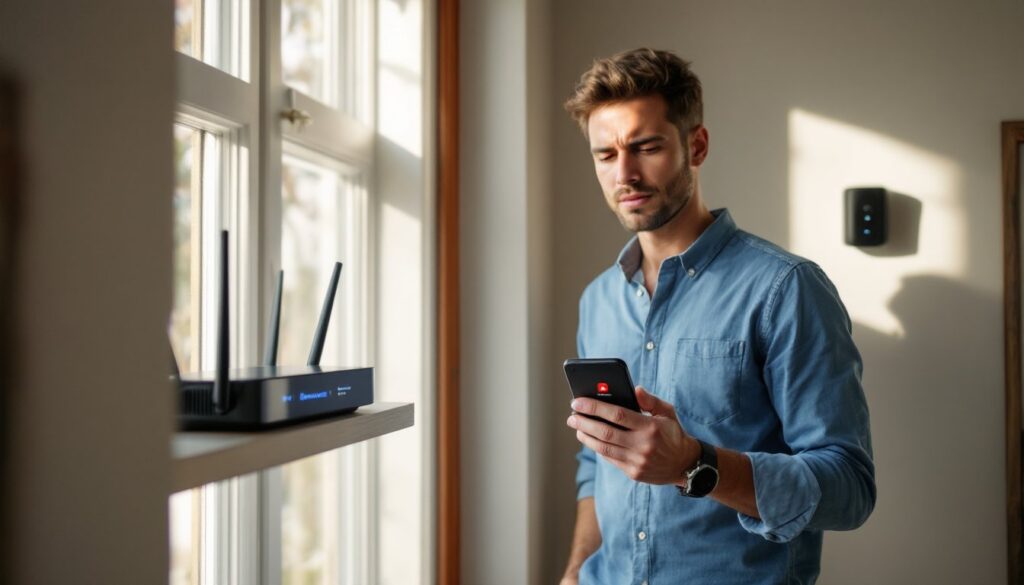
Before diving into camera-specific fixes, verify that your home network itself is healthy. Walk over to your router and confirm it’s powered on and showing a solid (not blinking) internet light. If it’s blinking or off, restart it, unplug for 30 seconds, plug back in, and wait two minutes for full boot.
Next, check the signal strength in the room where your Wyze camera sits. If your router is in the living room and the camera is mounted outside or in the garage, weak Wi-Fi is likely your culprit. Wyze cameras need at least 2-3 bars of signal to maintain a stable connection. If signal is poor, consider moving your router, adding a Wi-Fi extender (sometimes called a mesh node), or repositioning the camera closer to the router’s broadcast area.
Also confirm your Wi-Fi network is using a 2.4 GHz band, Wyze cameras don’t support 5 GHz. Most modern routers broadcast both simultaneously. If your router has a single SSID name but supports dual-band, log into your router’s settings and check whether 5 GHz is enabled. You may need to disable it or create a separate 2.4 GHz network for your camera. Your phone can connect to 5 GHz while the camera stays on 2.4 GHz without conflict.
Restart Your Wyze Camera and Router
A restart clears temporary glitches and resets network handshakes, it works surprisingly often. Start with the camera: unplug it from power for 10 seconds, then plug it back in. Watch the LED light: it should cycle through colors (blue, then amber) before settling on a steady blue, indicating it’s ready to connect. Give it 30 seconds to fully boot.
If that doesn’t work, restart your router next. Unplug it for 30 seconds, plug it back in, and wait two to three minutes for it to fully initialize and broadcast Wi-Fi again. Don’t rush this step, routers need time to establish their connection to your ISP and your local network devices.
Once both devices are back online, open the Wyze app and tap your camera tile. If it still shows a “Connecting” status, don’t panic, move to the next fix. But, many homeowners find that the simple power-cycle combo restores connection within minutes. This is also a good time to confirm you’re still connected to the correct Wi-Fi network in your phone’s settings: sometimes your device may have drifted to a neighbor’s network or an older saved network.
Update Your Wyze App and Camera Firmware
Outdated firmware is a common culprit. Wyze releases firmware updates regularly to patch connection bugs and improve stability. If your app or camera software is out of date, connection failures are more likely.
First, update the Wyze mobile app: open your phone’s app store (Apple App Store or Google Play Store), search for Wyze, and tap the Update button if one appears. Don’t skip this step, app updates often include critical bug fixes.
Next, check your camera’s firmware within the app itself. Tap your camera tile, select the settings icon (gear), scroll down to “Firmware Version,” and note the version number. Then tap “Check for Updates” and let the app search. If an update is available, select “Install Now.” The camera will restart during the update, this is normal and may take 2-3 minutes. Do not unplug the camera during the update or you risk corrupting its firmware.
After both updates complete, test the connection again. Firmware updates often resolve connection errors that no amount of restarting will fix. According to recent smart home device reviews, keeping firmware current is one of the simplest ways to avoid disconnection issues across connected cameras and security devices.
Reset Your Wyze Camera to Factory Settings
If the previous steps haven’t restored connectivity, a factory reset will clear any corrupted settings and return the camera to its original state. This erases all local configurations, so you’ll need to reconnect it to Wi-Fi and your Wyze account afterward, but it often resolves stubborn connection problems.
Step-by-Step Reset Process
- Locate the reset button: On most Wyze cameras, it’s a small recessed button on the back or bottom. You may need a straightened paperclip or a small pin to reach it.
- Power on the camera: Plug it in and let it boot normally (LED cycles and settles to solid blue).
- Press and hold the reset button: Using your paperclip, press and hold the reset button for 10-15 seconds. The LED will turn solid yellow, then flash amber.
- Release and wait: Let the camera restart. It will cycle through colors and eventually show a slow blinking blue light, indicating it’s in pairing mode and ready to be added to your account again.
- Re-add to the app: Open the Wyze app, tap the plus icon to add a device, select your camera model, and follow the on-screen pairing instructions. Make sure you’re on the correct 2.4 GHz Wi-Fi network during this process.
Once re-paired, test the connection. The reset often resolves issues caused by corruption or conflicting network settings. If a Wyze camera won’t connect even after a factory reset, the hardware may be failing, contact Wyze support or consider replacing the unit.
Troubleshoot Common Connection Error Codes
The Wyze app sometimes displays error codes or messages that point you toward the real problem. Here are the most common ones and what they mean:
Error “Failed to Connect”: This usually indicates the camera can’t reach your Wi-Fi network. Double-check that the 2.4 GHz band is available and that you’ve entered the correct password. Also verify the camera is within reasonable range of the router, move it closer and try again.
Error “Incorrect Password”: If you recently changed your Wi-Fi password, the camera still has the old one in memory. You’ll need to reset the camera and re-add it with the correct password.
Error “Weak Signal”: The camera is connecting but the signal is too weak to maintain stability. Move the router or camera, or add a Wi-Fi extender. Thick walls, interference from microwaves, or distance greater than 50 feet often cause weak signal issues.
Error “Device Offline”: The camera was connected but has dropped. Restart both the camera and router, then check for firmware updates. This is also common if your internet service went down, confirm your router has internet access by checking for an ISP outage in your area.
Comparing solutions across home automation reviews and product support forums shows that most error codes resolve within one or two restarts and an app/firmware update. If the error persists, escalate to Wyze support with the exact error code and a note about which troubleshooting steps you’ve already completed.
When to Contact Wyze Support
You’ve done the legwork, restarts, updates, resets, and your Wyze camera still won’t connect. At this point, it’s time to reach out to Wyze’s support team. Have the following information ready before you contact them:
- Camera model (Wyze Cam v3, Wyze Cam Pan, etc.)
- Firmware version (find this in the camera’s app settings)
- Exact error message or description of what happens when you try to connect
- Steps you’ve already completed (restart, update, reset, etc.)
- Network details: 2.4 GHz, your router model if you know it
- When the problem started: Was it working before and suddenly stopped, or is it brand new?
You can submit a support ticket directly through the Wyze app (tap the profile icon, then “About,” then “Submit Feedback”), or visit the Wyze website for email and live chat options. According to smart home technology trends, most manufacturers including Wyze handle support requests within 24-48 hours.
If your camera is still under warranty and hardware troubleshooting hasn’t worked, Wyze may replace it. Defective units do exist, they’re rare, but a unit with a failed Wi-Fi radio or corrupted firmware that no reset will fix should be replaced, not endlessly troubleshot.